
Setup guide
Let's get started.
It takes about five minutes, and you only do it once. After that, your bells are a tap away whenever your phone is on your home Wi-Fi.
- Your caroling bellsWith their song cartridge slot
- Your MerrymakerAnd the power adapter it came with
- Your phoneiPhone or Android, no app needed
- Your Wi-Fi passwordFor a 2.4 GHz network
Download the quick start guideThe printed card from the box, as a PDF (two pages).
Swap the cartridge
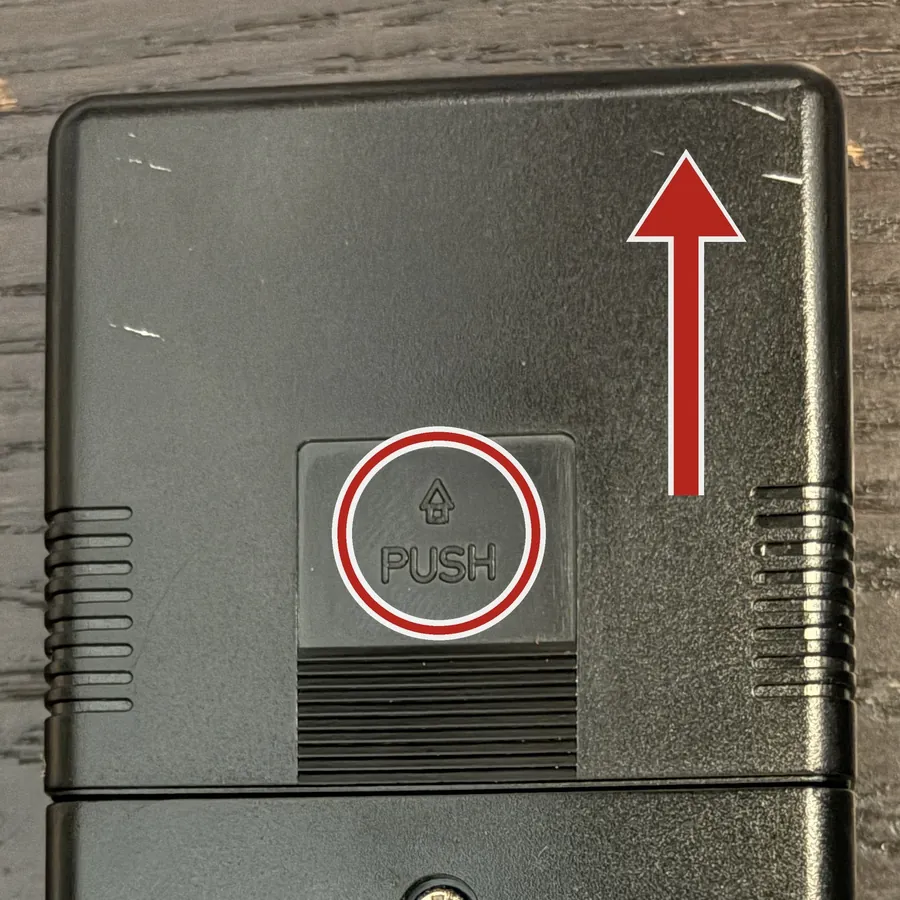
Unplug your bells. To open the control box, turn it over. Press firmly with your thumb where it says PUSH on the back cover, and slide the cover off in the direction the arrow points.
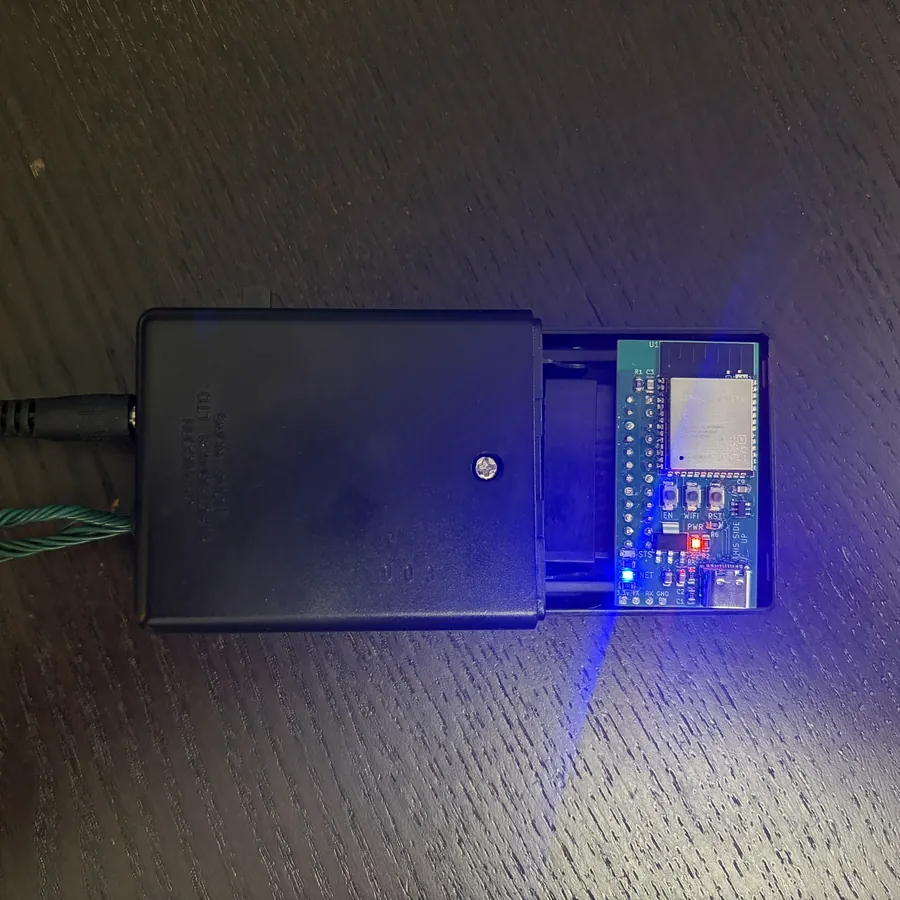
Slide the old song cartridge out of the control box, and keep it somewhere safe. Then slide the Merrymaker into the same slot, the way it sits in this photo, until it's snug.
Plug in and turn on
Power your bells with the adapter that came with Merrymaker. Merrymaker needs a little more power than the old adapter can give.
Then switch your bells on, the same way you always have. The red PWR light on the Merrymaker comes on.
After a few seconds the blue NET light starts blinking. That means it's ready to meet your phone.
Join the Merrymaker network
On your phone, open your Wi-Fi settings. You'll see a new network called Merrymaker- followed by four letters or numbers. Tap it. There's no password.
A Merrymaker page opens by itself. If it doesn't, open your web browser and go to 192.168.4.1.
Your phone may warn that this network has no internet. That's expected. Choose to stay connected.
Choose your home Wi-Fi
Pick your home network from the list, type its password and tap Join network. When Merrymaker joins, the blue NET light stops blinking and stays solid, and the page says All set.
Save your bells' address
- Tap Copy address, then Finish. Your phone goes back to your home Wi-Fi.
- Open Safari or Chrome, paste the address and go. It looks like merrymaker-4f2a.local: merrymaker- plus the same four characters as the Merrymaker network in step 3.
- Add the page to your home screen. The Merrymaker bell shows up next to your apps, and opens your bells in one tap. The page shows you how.
Lost it later? Here's how to find it again.
Pick a song
Tap a collection, tap a song, and let them ring. Choose to play one song, repeat it, play through the whole collection or shuffle.
Got more than one set? Set each one up the same way, on the same Wi-Fi. Then press play on any of them, and they all ring together. You'll find every set listed under Choir.
Lights and buttons.
NET light
Blue · Wi-Fi
- Blinking
- The Merrymaker network is open for your phone to join.
- On
- On your home Wi-Fi and ready to play.
PWR light
Red · Power
- On
- Merrymaker has power.
STS light
Green · Status
- Flickering
- Ringing the bells. It flashes with every note.
WIFI button
For finding or moving your set
- Press
- Opens the Merrymaker network again, without forgetting your Wi-Fi. Join it to find your set's address, or to move it to another network. It closes by itself after 5 minutes.
- Hold 5 seconds
- Forgets your Wi-Fi and starts setup again.
RST button
For playing without your phone
- Press
- Plays or stops a song.
- Hold 5 seconds, then let go
- Forgets your Wi-Fi.
- Hold 10 seconds
- Resets everything: Wi-Fi, the set's name and all settings. The blue and green lights flash in turn for a moment to confirm it worked. Your bells start over at step 3.
If something's not right.
I can't see the Merrymaker network
- Check the blue NET light is blinking. If it's on steadily, your set is already on Wi-Fi: press the WIFI button to open the network again.
- If the red PWR light doesn't come on, check your bells are switched on, the adapter is plugged in at both ends and the Merrymaker is pushed fully into its slot.
- Give it 30 seconds after plugging in, then refresh the Wi-Fi list on your phone.
My home network isn't in the list
Merrymaker uses 2.4 GHz Wi-Fi, the kind almost every home router has. If your router splits its networks by band, choose the one that doesn't end in "5G". Move the bells closer to the router if the network is weak.
It couldn't join my Wi-Fi
Usually the password was mistyped. If Merrymaker can't join, the Merrymaker network comes back by itself after about 20 seconds. Join it again and re-enter the password. Passwords are case-sensitive.
I lost my bells' address
- Try merrymaker- plus the four characters from the Merrymaker network name, then .local. For Merrymaker-4F2A that's merrymaker-4f2a.local. If you renamed your set, use its new name instead.
- Or press the WIFI button on the Merrymaker, join the Merrymaker network on your phone, and the page shows the address again, along with its number address. Your Wi-Fi settings aren't changed.
- Your router's app or device list also shows it, named merrymaker- and four characters.
The address won't open
- Make sure your phone is back on your home Wi-Fi, not the Merrymaker network or mobile data.
- Try the number address shown under All set instead, such as 192.168.1.42. Some phones and computers don't understand the .local name.
The bells are quiet, or some bells don't ring
- Use the adapter that came with Merrymaker. The original one doesn't give enough power.
- Open Bells on the Merrymaker page and tap each bell to test it. A bell that never rings may need its hammer or plug checked on the bells themselves.
My sets aren't playing together
Each set needs to be on the same Wi-Fi network. Open Choir on any set's page to see which sets it can find. Guest networks and mesh systems that keep devices apart can stop sets from hearing each other.
I want to move it to a new router or a friend's house
Press the WIFI button, join the Merrymaker network and pick the new network. Or hold the WIFI button for 5 seconds to forget the old network and start setup again.
Still stuck? Message us through eBay and we'll help you get ringing.